 Automatrix
Add Automatrix to your Google Business Profile
Adding us as a Manager lets us keep your Google listing up to date, post photos and updates, and reply to reviews for you. You stay the owner, you never share a password, and you can remove us whenever you like.
Short versionSearch your business name on Google, click the three dots on the Your business on Google panel, then Business Profile settings›People and access›Add. Enter info@automatrix.au, pick Manager and click Invite.
Two things to sort first
Use a computer if you can. The menus are easier to find than on a phone.
Sign in to the Google account you used to set up your business listing.
You need to be an Owner on the listing. Managers can't add people.
Four clicks, start to finish
Each screenshot plays the clicks for you. The orange boxes show where to click.
-
Search your business name on Google
Go to google.com and type in your business name. If you're signed in to the right account, a panel called Your business on Google shows up at the top of the results.
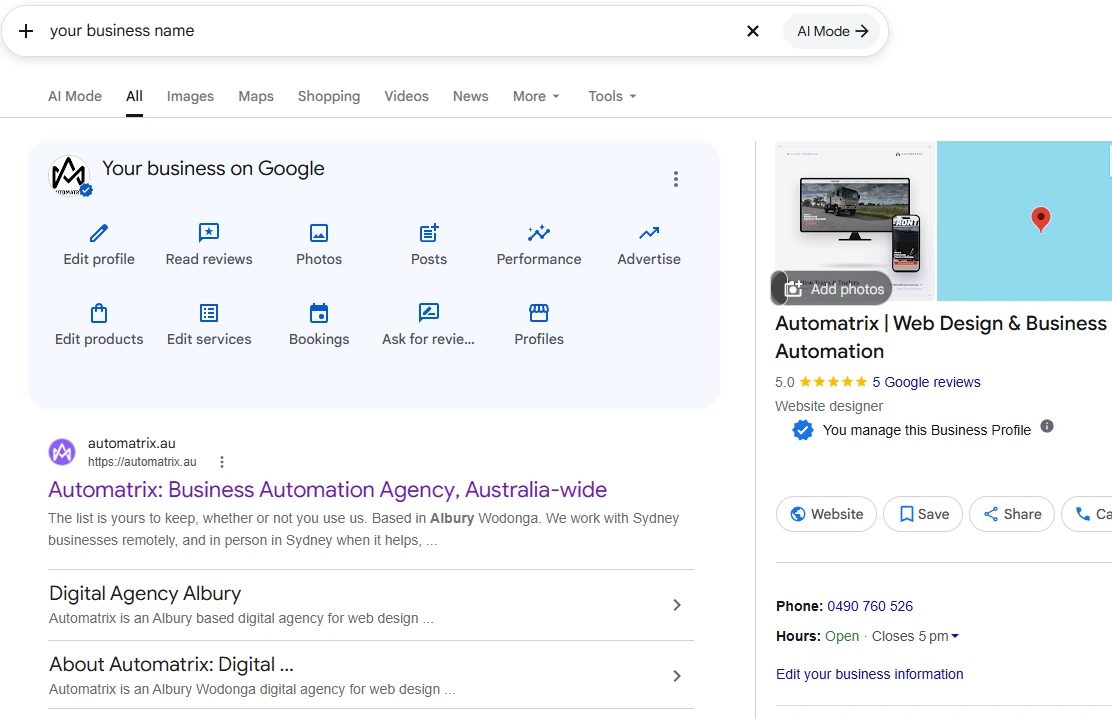
We've used our own listing as the example. You'll see your business here. -
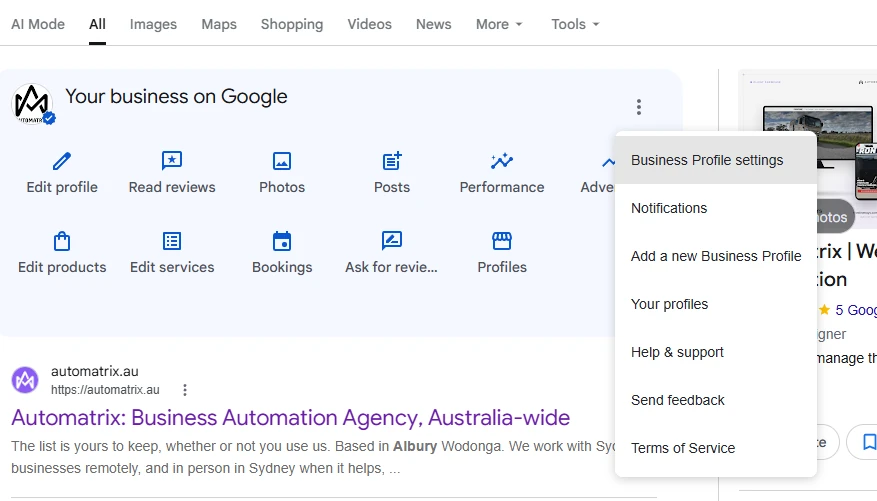
Open Business Profile settings
Click the three dots in the top right corner of that panel, then click Business Profile settings.
 1
2
-
Go to People and access, then click Add
From the settings list, click People and access. You'll see everyone who can manage your profile. Click Add.
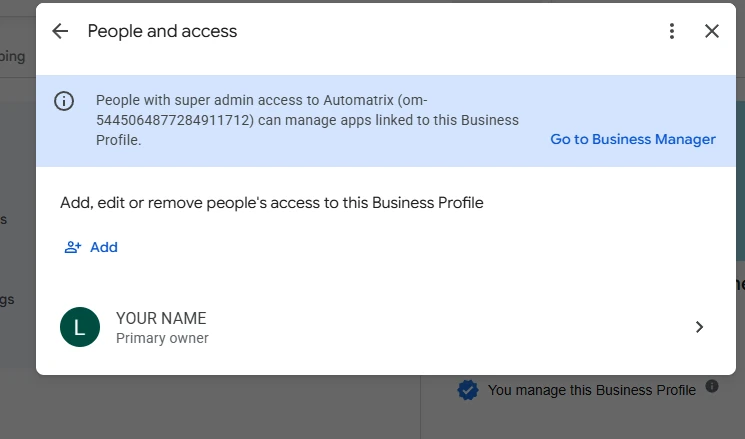
Your name shows here as Primary owner. If you don't have the blue banner at the top, that's fine. -
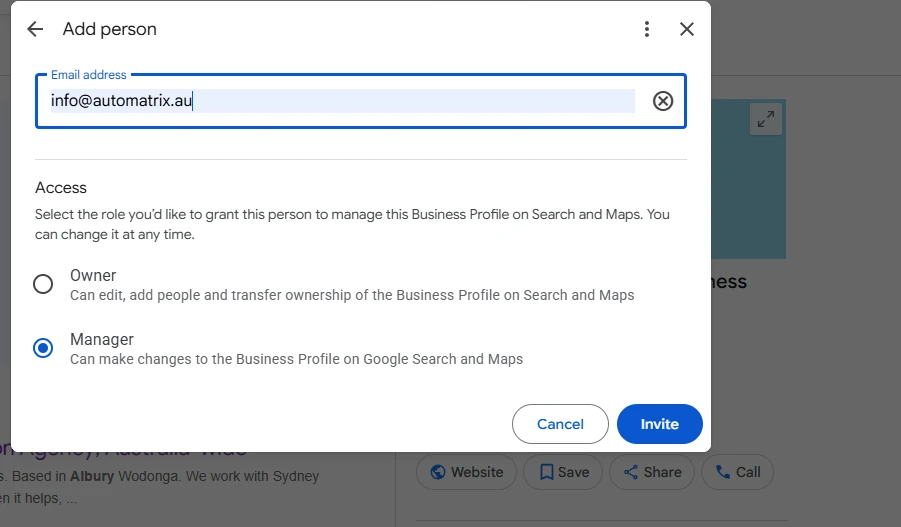
Enter our email, choose Manager, click Invite
Paste info@automatrix.au into the email box, select Manager, then click Invite.
 1
2
3
Double check the ending. It's .au on its own, not .com.au.
That's it, you're done
Google emails us the invite straight away. We'll accept it, usually the same day, and let you know once we're in. Until then you might see us marked as pending under People and access. That's normal.
Manager covers our work. Ownership stays with you.
Manager
What we need- Update your details, hours and services
- Add photos and posts
- Reply to reviews
- Can't add or remove people
- Can't delete or transfer your profile
Owner
Keep this yourself- Everything a Manager can do
- Decide who has access
- Remove the profile or hand it over
Only give Owner to people inside your business.
Common hiccups
I can't see the Your business on Google panel
You're most likely signed in to a different Google account. Click your profile picture in the top right of Google, switch to the account you set the listing up with, and search again. You can also go to business.google.com and pick your business from there.
There's no Add button
Only owners can add people. If your account is a Manager on the listing, ask whoever is the Primary owner to follow these steps. You can send them this page.
Do I need to give you my password?
No, and please don't. We sign in with our own Google account, info@automatrix.au. Your password stays with you.
We have more than one location
Repeat the steps for each location's profile. If you run a lot of locations in a business group, get in touch and we'll set it up at the group level so you only do it once.
How do I remove Automatrix later?
Open Business Profile settings, then People and access. Click our name and remove our access. It takes effect straight away.
Stuck at any step?
Give us a call and we'll stay on the line while you click through it. It usually takes a couple of minutes.